


One of the quieter but most consequential changes in Fidus Writer 4.1 is the overhaul of the fiduswriter-gitrepo-export plugin. What started as a way to publish compiled books to GitHub or GitLab has become a fully fledged, user-controlled publishing pipeline: supporting individual documents, multiple git hosting platforms, and a range of export formats including DOCX and ODT.
Here is what changed, why it matters, and how to use it.
What the Plugin Used to Do
In previous releases, fiduswriter-gitrepo-export allowed you to export a compiled book (a collection of chapters assembled with the fiduswriter-books plugin) to a GitHub or GitLab repository. This worked, but it had two significant limitations.
First, it only handled books. If you were working on a single journal article, a standalone essay, or any document that did not belong to a larger compilation, you could not push it directly to a git repository from within Fidus Writer.
Second, the connection to GitHub or GitLab was tied to the instance’s OAuth configuration. An administrator had to set up OAuth login integration with the platform, and users could only export to repositories accessible through that single account. This made the feature impractical for multi-user instances where different authors needed to publish to different repositories – or to repositories on different servers.
What Changed in 4.1
Three major changes arrived with version 4.1 of the plugin, each building on a new platform-level feature in Fidus Writer itself.
Individual Documents Can Be Exported
The most immediately visible change is that you can now connect individual documents – not just books – to git repositories. When you open a document, you will find a “Git Repository” tab in the document settings where you can specify the target repository and the export format. The same feature exists for books, so both workflows are now supported.
This means a researcher writing a single conference paper can set up automated pushes to a repository on every export, just as easily as an editor managing a multi-chapter monograph could before.
A New User Profile Page for Plugin Settings
Fidus Writer 4.1 introduces something that did not exist before: a user profile page that plugins can extend. Previously, user-related settings in Fidus Writer were largely limited to account information – name, email, avatar, password. Plugin-specific per-user configuration did not have a dedicated place in the interface.
The new profile page changes this. It provides a structured location where plugins can add their own settings panels, and those settings are not merely about capturing data about the user. They are about letting the user specify preferences and connections that affect how the plugin behaves for them.
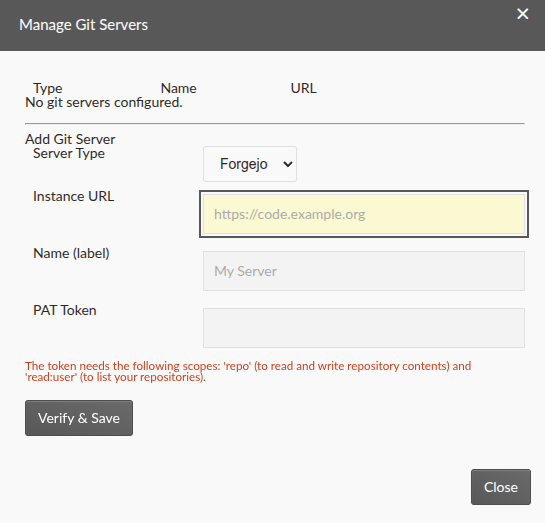
The gitrepo-export plugin was the first to take advantage of this. Visit your user profile and you will find a button labeled “Manage git servers.” Clicking it opens a dialog where you can configure any number of git server connections.
Any Git Server, Any Repository, Your Credentials
Here is where the workflow fundamentally changes. Instead of relying on an OAuth connection set up by your administrator, you now configure git server connections yourself using personal access tokens.
You can add connections to:
- GitHub (github.com)
- GitLab (gitlab.com or any self-hosted GitLab instance)
- Forgejo (self-hosted or public instances)
- Gitea (self-hosted or public instances)
For each connection, you provide a name (so you can tell them apart), the server type, the instance URL (for self-hosted servers), and a personal access token with write access to the repositories you want to publish to.
The practical result is that you can now connect any document or book to any repository on any supported server – as long as you have write access. A researcher at one institution can push to a university GitLab instance. A collaborator on the same Fidus Writer instance can push to a personal GitHub account. Someone else can use a departmental Forgejo server. All from the same Fidus Writer installation, each managing their own connections.
Once you have configured at least one git server connection, the “Git Repository” tab in your document or book settings will let you select which repository to push to and in which format.
Export Formats: DOCX, ODT, and Native
The 4.1 update also expands the range of export formats available for git pushes. Previously, you could only export to the built-in formats (DOCX, ODT, EPUB, LaTeX, JATS XML, HTML). You can now additionally export as:
- Native Fidus Writer format (the source document)
- Any of the other formats that Fidus Writer has registered an exporter for.
Combined with the fiduswriter-pandoc plugin, this means your Fidus Writer documents can flow directly into version-controlled publication pipelines. Push a DOCX file to a repository that triggers a CI/CD workflow. Export a pandoc-generated markdown format to a repository that generates PDFs via LaTeX. Push ODT to an institutional repository that accepts OpenDocument submissions. The git push becomes a bridge between Fidus Writer’s collaborative editing and whatever downstream processing your workflow requires.
How to Set It Up
If you are a user on a Fidus Writer 4.1 instance with the gitrepo-export plugin installed, the setup process is straightforward:
- Open your user profile page from the menu in the top right corner.
- Click “Manage git servers.”
- In the dialog that opens, click to add a new server connection.
- Select the server type (GitHub, GitLab, Forgejo, or Gitea).
- Give the connection a descriptive name – “University GitLab” or “My GitHub,” for example.
- For self-hosted servers, enter the base URL (e.g., https://git.university.edu). This is not needed for GitHub.
- Enter your personal access token. You generate these in your account settings on the git hosting platform. The token needs write access to the repositories you plan to push to.
- Save the connection.
Repeat for as many servers as you need. The connections are private to your account – other users on the same Fidus Writer instance cannot see or use your tokens.
Once your servers are configured, open any document or book, go to the “Git Repository” tab in its settings, select a repository and export format, and save. From then on, exports from that document will include a git push to the configured repository.
The Bigger Picture
The gitrepo-export changes in 4.1 reflect a broader direction in Fidus Writer: giving users more direct control over their publishing pipelines while maintaining the collaborative editing experience that makes Fidus Writer useful in the first place.
The introduction of the user profile page as a place for plugin-managed settings is particularly significant. It means plugins can now offer per-user configuration without having to invent their own settings UI from scratch. The gitrepo-export plugin is the first to use this, but it will not be the last. Expect to see more plugins adding profile-level settings in future releases.
For now, if you have been waiting for a way to push your Fidus Writer documents directly to GitHub, GitLab, Forgejo, or Gitea – in the format you need, to the repository you choose – the wait is over.